
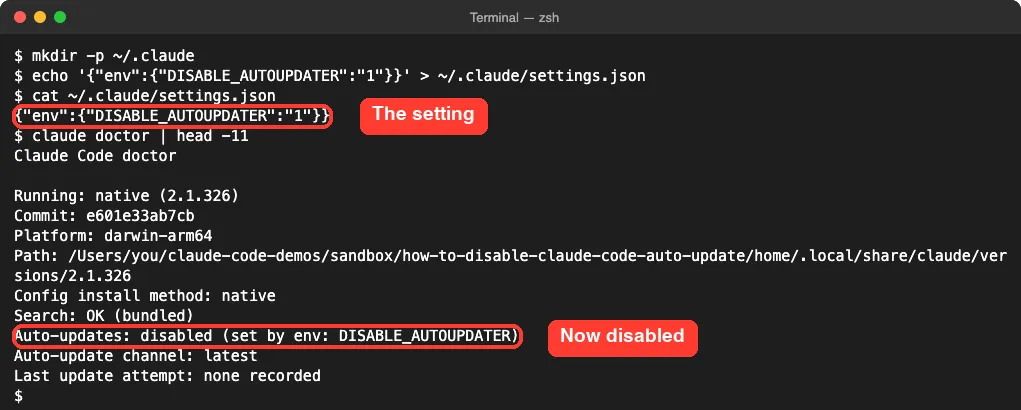
To disable Claude Code auto update, add "DISABLE_AUTOUPDATER": "1" inside the env block of your ~/.claude/settings.json file, then restart Claude Code. Run claude doctor and the Auto-updates line should now read disabled (set by env: DISABLE_AUTOUPDATER) instead of enabled.
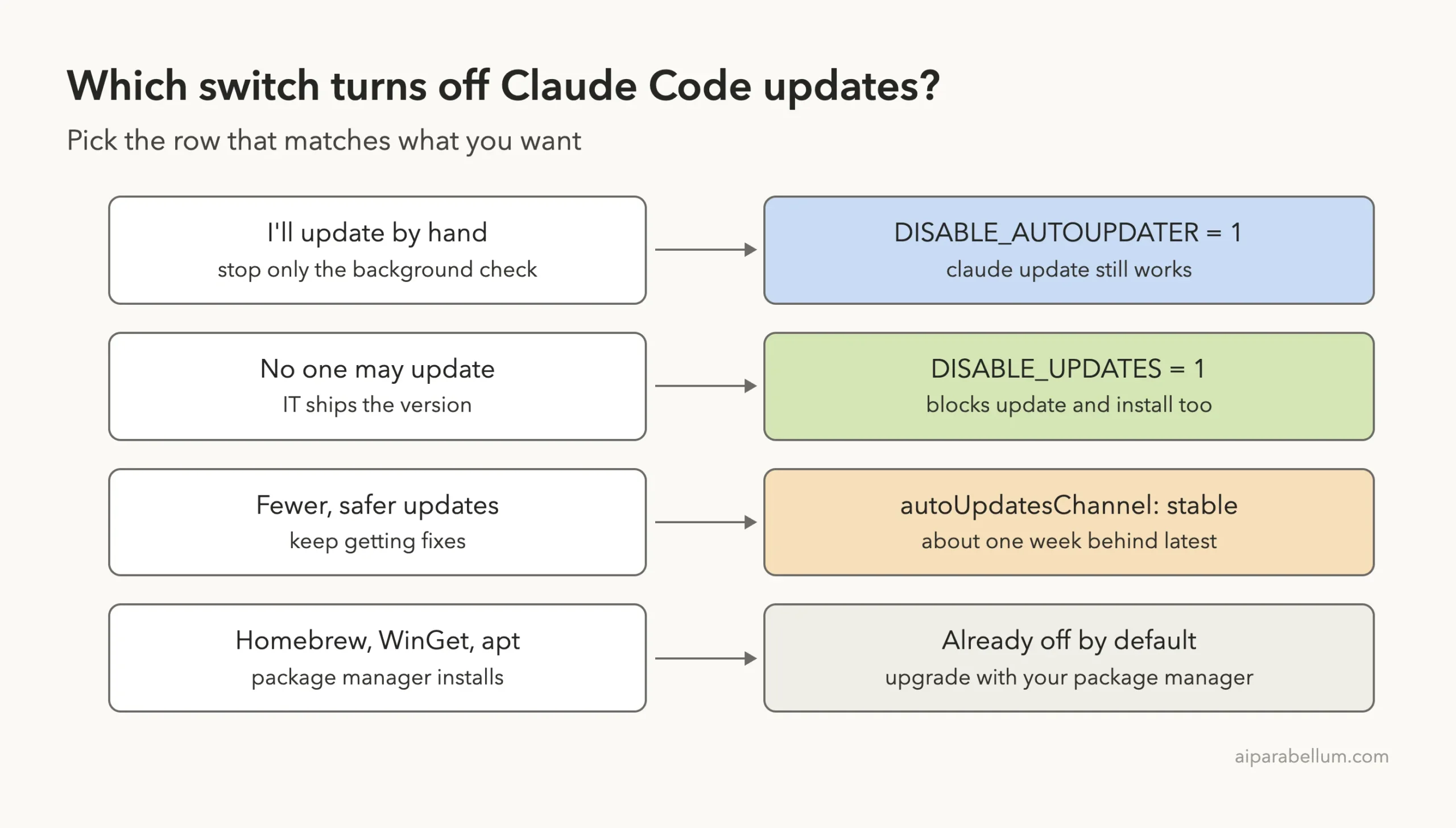
That one setting stops the background update check, but you can still update by hand with claude update whenever you like. If you need to block every update, including manual ones, use DISABLE_UPDATES instead. Homebrew, WinGet, apt, dnf and apk installs don’t auto-update at all, so they need no setting.
Below, we walk through each method in a real terminal, show where the setting can live, explain how to turn updates back on, and cover the risks of staying on an old version.
Browse all our Claude Code tutorials for more fixes and how-tos.
Tested with Claude Code v2.1.330 on macOS on November 23, 2026. We installed version 2.1.326 with the native installer inside a throwaway home folder, so the working install on our test machine was never touched. We tested on macOS; the Windows and Linux steps follow Anthropic’s official instructions.
Quick Summary
| What you want | What to set | Where | Manual claude update |
|---|---|---|---|
| Stop background updates | DISABLE_AUTOUPDATER=1 | env in a settings file, or your shell | Still works |
| Block every update | DISABLE_UPDATES=1 | env in a settings file, or your shell | Blocked |
| Fewer, tested updates | "autoUpdatesChannel": "stable" | Settings file or /config | Follows stable |
| Turn off all nonessential traffic | CLAUDE_CODE_DISABLE_NONESSENTIAL_TRAFFIC=1 | Settings file or your shell | Not tested here |
| Homebrew, WinGet or Linux package | Nothing | Already off by default | Use your package manager |
How Claude Code Auto-Update Works
A native install of Claude Code checks for a new version when it starts and again from time to time while it runs. When it finds one, it downloads and installs it in the background. The new version takes over the next time you start Claude Code.
That is great for most people, since you get fixes and new features without lifting a finger. But there are good reasons to switch it off:
- A new release broke something in your workflow and you want to stay on a version that works.
- You are recording a demo or a course and need the screens to look the same every day.
- Your company tests each version before people use it.
- You work on a slow or metered connection and prefer to update when you choose.
Before changing anything, check what you have now. Run claude doctor in your shell (not inside a session) and look at the Auto-updates line. On our fresh native install it said enabled, with the update channel set to latest.
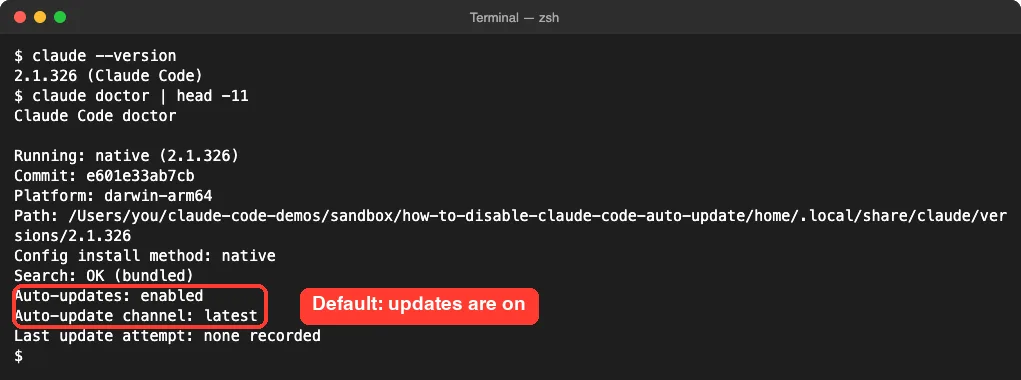
If you want a full tour of that health check, our claude doctor guide explains every line.
Method 1: Disable Claude Code Auto-Update in settings.json
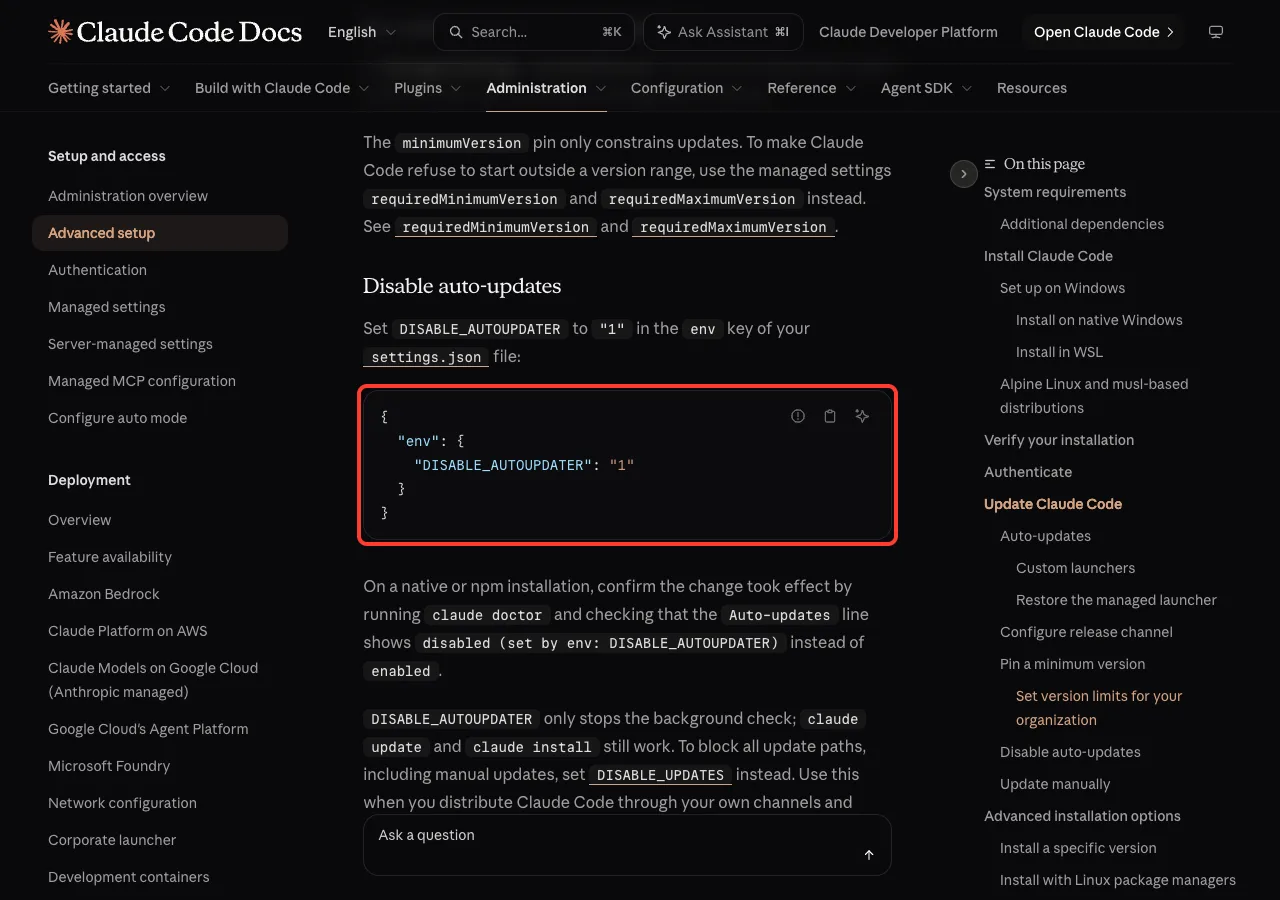
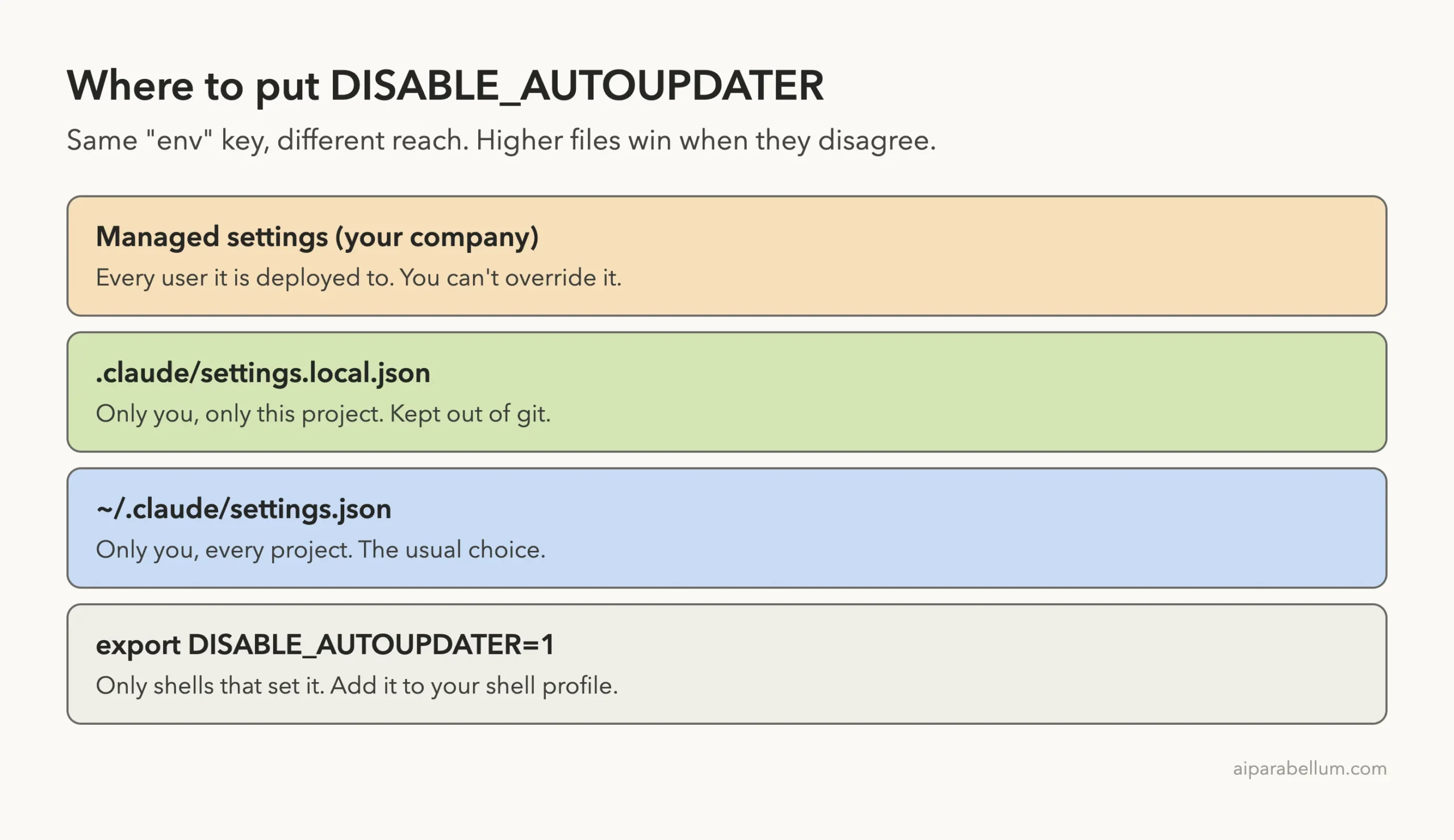
This is the method Anthropic documents, and it is the one we recommend. You add the variable to the env key of your user settings file, which applies to every project you open.
- Open
~/.claude/settings.jsonin any text editor. Create it if it doesn’t exist. On Windows,~/.claudemeans%USERPROFILE%\.claude. - Add the
envblock shown below. If the file already has other keys, addenvnext to them and keep the JSON valid. - Save the file and start a new Claude Code session.
- Run
claude doctorand confirm the Auto-updates line says disabled.
{
  "env": {
    "DISABLE_AUTOUPDATER": "1"
  }
}
Here is the exact result in our test. Right after writing the file, claude doctor showed disabled (set by env: DISABLE_AUTOUPDATER).
The official setup page describes the same steps, including the doctor check. Settings files are strict JSON, so a trailing comma or a // comment will cause a settings error at the next start.
Not sure where the file lives on your machine? Our post on finding settings.json covers every location, and these settings.json examples show how to combine env with other keys.
Disable auto-update for one project only
Sometimes you only want one project frozen, such as a demo folder. Put the same env block in .claude/settings.local.json inside that project. That file is personal and stays out of git.
We tried it. Inside the project, claude doctor reported auto-updates as disabled. After moving to another folder, the same command said enabled again.
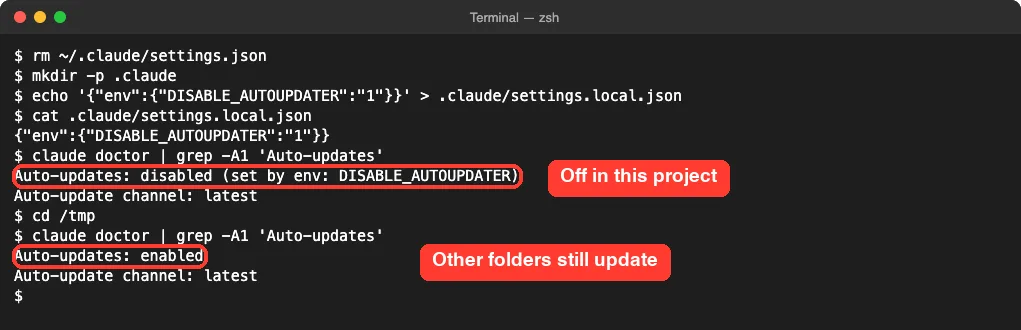
Keep in mind that the background check runs from whatever session is open. If you start Claude Code in a different folder, that session can still update the shared install. For a machine-wide freeze, use the user file instead.
Method 2: Use an Environment Variable in Your Shell
You can also set the variable in your shell. This works well in scripts, CI jobs and containers where you don’t want to touch any settings file.
export DISABLE_AUTOUPDATER=1
claude doctor | grep -A1 'Auto-updates'
To make it stick, add the export line to your shell profile, such as ~/.zshrc on macOS or ~/.bashrc on most Linux systems. On Windows PowerShell, the matching command is $env:DISABLE_AUTOUPDATER = "1" for the current window.
We also tried CLAUDE_CODE_DISABLE_NONESSENTIAL_TRAFFIC. The docs say it turns off auto-updates along with telemetry, error reporting, release notes and several other network checks. claude doctor confirmed it, naming that variable as the reason.
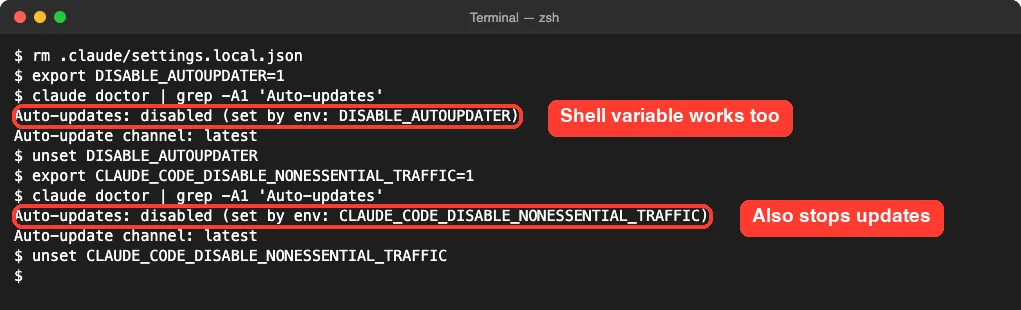
Only use the nonessential traffic switch if you want all of those things off. It also stops feature-flag fetching, which makes features such as Remote Control unavailable. Our environment variables guide lists what each variable changes.
DISABLE_AUTOUPDATER vs DISABLE_UPDATES
These two names look alike, but they behave very differently. Picking the wrong one is the most common mix-up we see.
| Behavior | DISABLE_AUTOUPDATER | DISABLE_UPDATES |
|---|---|---|
| Background update check | Off | Off |
claude update | Works | Blocked |
claude install <version> | Works | Blocked |
| Best for | Developers who update by hand | Companies that ship a fixed version |
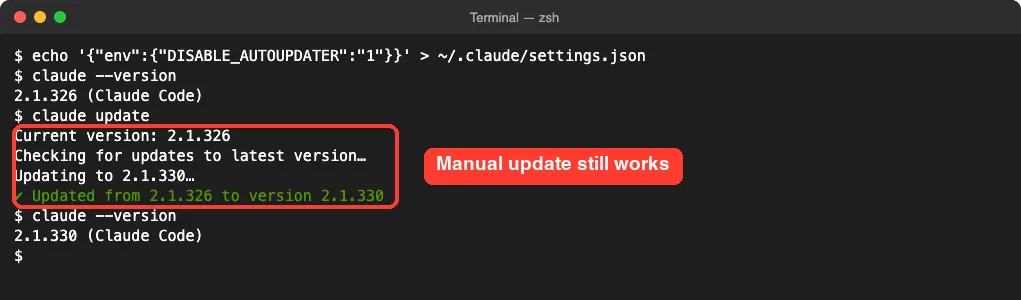
With DISABLE_AUTOUPDATER set, we ran claude update and it still moved our test install from 2.1.326 to 2.1.330. That is the point of this variable: no surprises, but you stay in control.
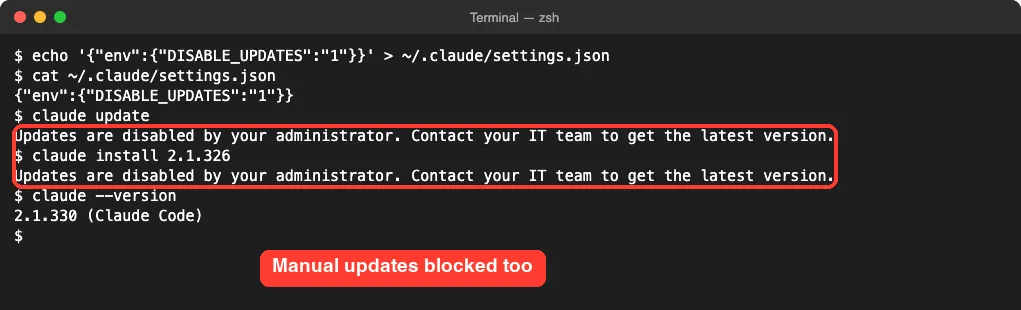
Then we swapped in DISABLE_UPDATES. Both claude update and claude install 2.1.326 stopped with the message “Updates are disabled by your administrator.” We saw that wording even though we set the variable ourselves.
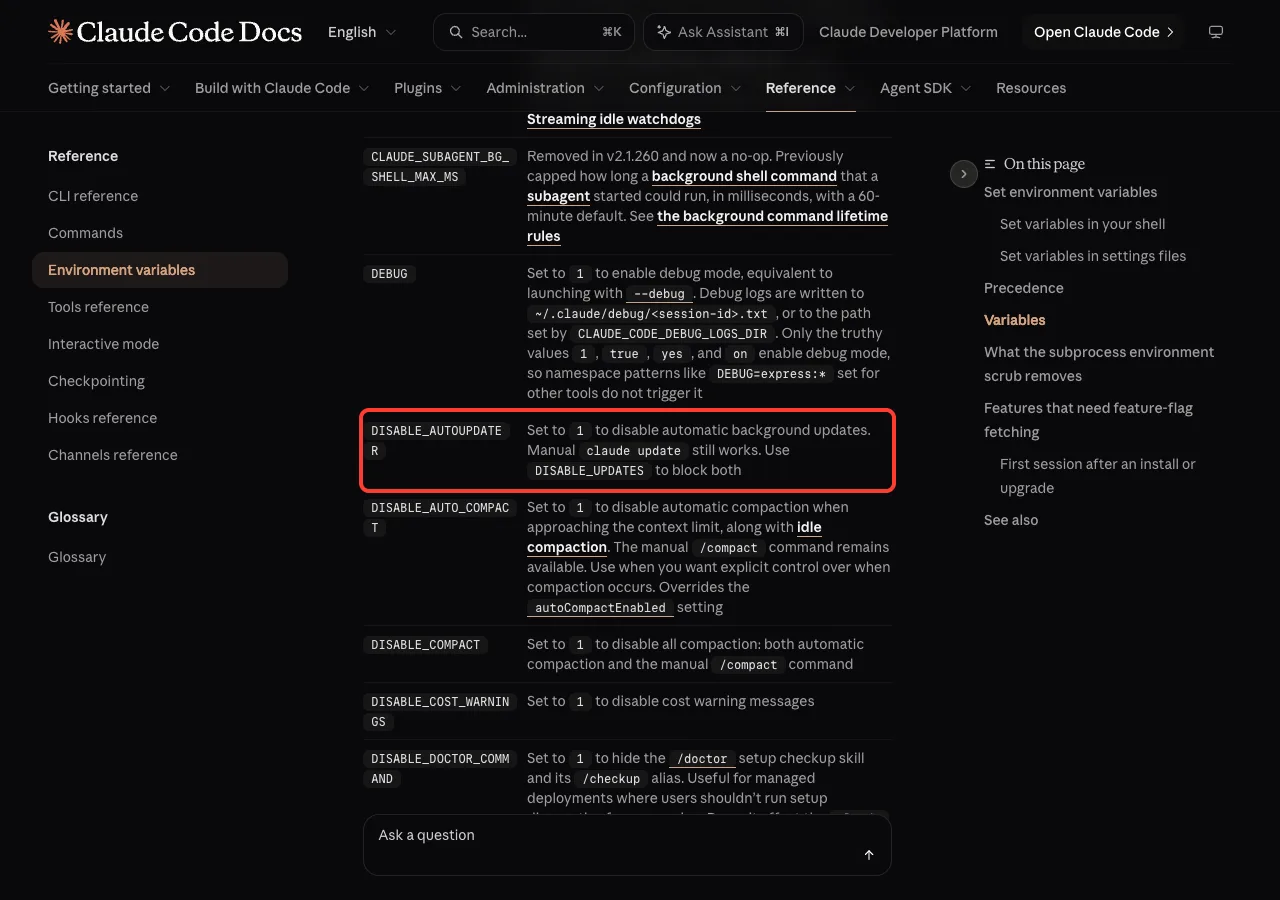
The environment variables reference says the same thing in one line: the auto-updater switch leaves manual updates alone, and DISABLE_UPDATES blocks both.
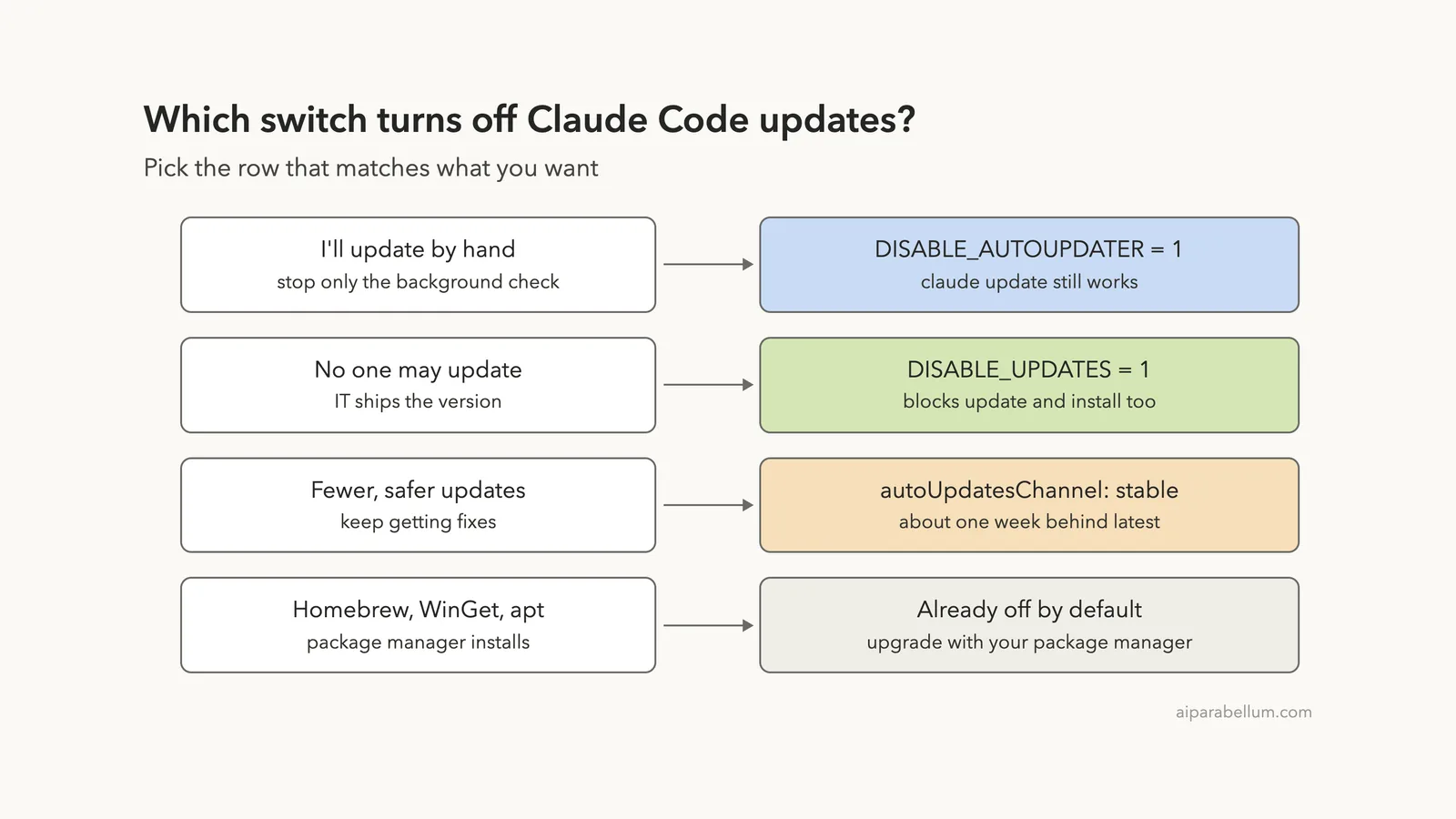
Which Way to Disable Claude Code Updates Should You Use?
Here is the short version as a picture. Start from what you want, then follow the arrow.
And here is where the setting can live, from the widest reach to the narrowest. Managed settings from your company sit above everything, and your own files can’t override them.
A softer option: the stable channel
If you mostly want fewer surprises, you may not need to switch updates off at all. Set autoUpdatesChannel to "stable" in your settings file, or pick it in /config under Auto-update channel. The docs say stable serves a version that is typically about one week old and skips releases with major regressions.
{
  "autoUpdatesChannel": "stable"
}
One catch: switching to stable can move a native install down to an older version. To avoid that, the docs suggest also setting minimumVersion to your current version. Our downgrade guide walks through that in detail.
Claude Code Auto-Update on Homebrew, WinGet and Linux
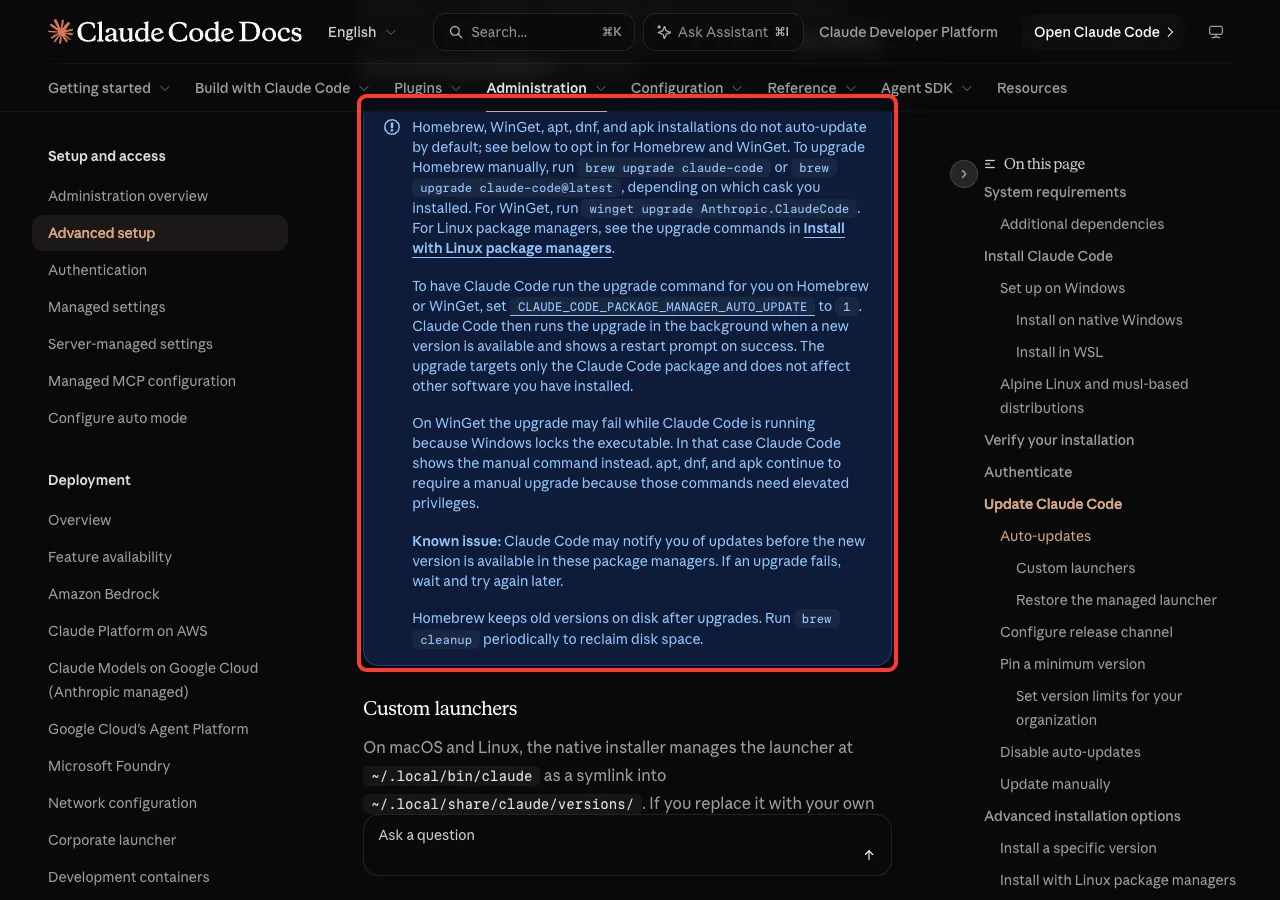
Package manager installs work differently. Homebrew, WinGet, apt, dnf and apk installs do not auto-update by default, so there is nothing to disable. You upgrade them yourself:
- Homebrew:
brew upgrade claude-codeorbrew upgrade claude-code@latest, depending on which cask you installed. - WinGet:
winget upgrade Anthropic.ClaudeCode. - apt, dnf and apk: use the upgrade commands from Anthropic’s Linux package instructions.
If someone set CLAUDE_CODE_PACKAGE_MANAGER_AUTO_UPDATE to 1, Claude Code will run the Homebrew or WinGet upgrade for you in the background. Remove that variable to go back to manual upgrades.
Not sure which kind of install you have? claude doctor shows it on the “Running” line. If you find two copies, our duplicate installs fix helps you clean up.
How to Turn Claude Code Auto-Update Back On
Turning updates back on is just as easy. Delete the DISABLE_AUTOUPDATER line (or the whole env block if it has nothing else), remove any export line from your shell profile, and open a new terminal.
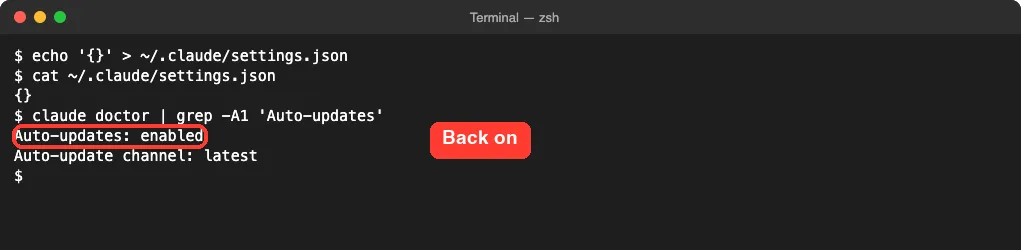
Then run claude update once to catch up right away instead of waiting for the next background check. If updates still don’t arrive, our not updating fix covers the usual causes.
Risks of Turning Off Updates
Freezing your version is safe for a while, but it has a cost the longer you wait. Here is what to keep in mind:
- You miss security fixes. The docs remind package manager users to upgrade for “the latest features and security fixes,” and the same applies to a frozen native install.
- New models may need a newer version. The docs note a newly launched model can require a Claude Code version newer than the stable channel serves.
- Bug reports get harder. If you report a problem, the first answer is often to update and try again.
Turning off auto-update is a pause button, not a forever setting. Put a reminder on your calendar to update by hand.
Try It Yourself
Practice in a throwaway folder first. Create a test project, add a local settings file, and ask Claude Code to explain what it did. Paste this prompt into a session started in that folder:
Create .claude/settings.local.json in this folder with an "env" block that sets
DISABLE_AUTOUPDATER to "1". Keep the JSON valid. Then tell me which shell
command I should run to confirm auto-updates are disabled, but don't run it.
Approve the file write, exit the session, and run claude doctor in the same folder. You should see the disabled line. Delete the file when you’re done.
Common Mistakes
- Putting the key at the top level.
"DISABLE_AUTOUPDATER": "1"must sit inside"env": { }, not next to it. - Using
DISABLE_UPDATESon a personal machine, then wondering whyclaude updatesays your administrator blocked it. - Breaking the JSON with a trailing comma or a comment. Claude Code reports a settings error at the next start.
- Setting the variable in one terminal tab only. A plain
exportdisappears when you close that window. - Expecting a project-local file to freeze the whole machine. Sessions started in other folders can still update.
- Forgetting that a Homebrew or WinGet install never auto-updated in the first place.
Pro Tips
- Always confirm with
claude doctor. It names the exact setting that turned updates off, which saves guessing. - Pair
DISABLE_AUTOUPDATERwith a weekly habit of runningclaude update, so you never fall far behind. - Read the changelog before a manual update. Our weekly Claude Code roundup sums up what changed.
- For teams, managed settings beat asking everyone to edit their own file. Admins can also use
requiredMinimumVersionandrequiredMaximumVersionto keep everyone in a version range. - Check the official setup docs after big releases, since update settings can change.
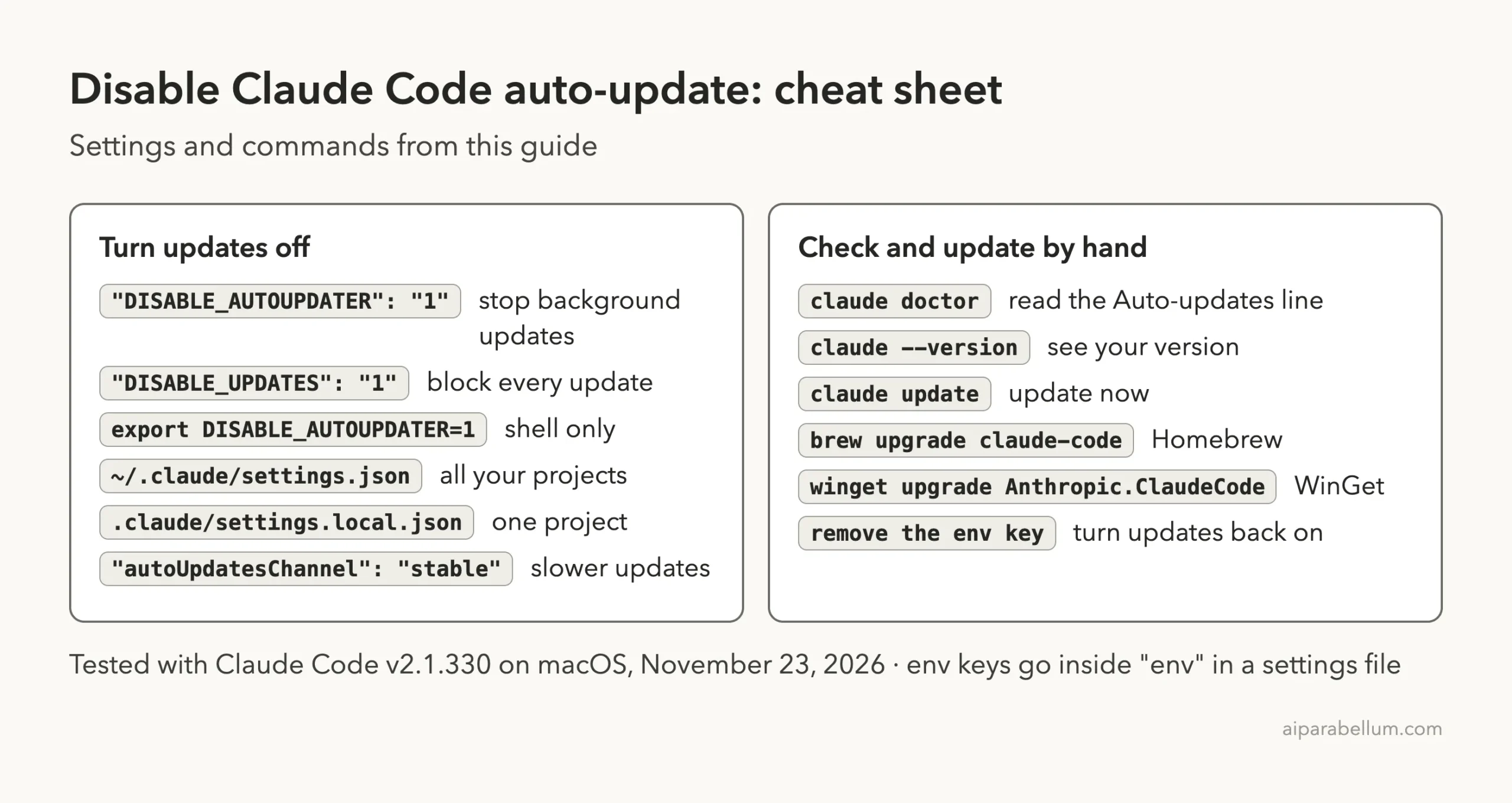
Cheat Sheet
Frequently Asked Questions
How do I disable Claude Code auto-update?
Add "DISABLE_AUTOUPDATER": "1" inside the env block of ~/.claude/settings.json, or export it in your shell. Then run claude doctor to confirm the Auto-updates line says disabled.
Can I still update Claude Code manually after disabling auto-update?
Yes, as long as you used DISABLE_AUTOUPDATER. In our test, claude update still worked. Only DISABLE_UPDATES blocks manual updates.
Does Claude Code auto-update on Homebrew?
No. Homebrew, WinGet, apt, dnf and apk installs don’t auto-update by default. Run your package manager’s upgrade command, or opt in with CLAUDE_CODE_PACKAGE_MANAGER_AUTO_UPDATE on Homebrew and WinGet.
Why does claude update say “Updates are disabled by your administrator”?
DISABLE_UPDATES is set somewhere, either in a settings file, your shell or your company’s managed settings. Remove it from your own files to update again, or ask your IT team if it comes from managed settings.
Is it safe to turn off Claude Code updates?
For a short time, yes. Over months you miss security fixes and may lose access to new models, so update by hand on a regular schedule.
Conclusion
Disabling Claude Code auto-update takes one line: "DISABLE_AUTOUPDATER": "1" in the env block of your settings file, confirmed with claude doctor, while claude update keeps working for when you’re ready. Use DISABLE_UPDATES only when no one should update at all, try the stable channel if you just want calmer updates, and remember that package manager installs never auto-updated to begin with. Whatever you choose, plan regular manual updates so you keep getting fixes, and see our common errors list or our Claude AI overview if you run into anything else.